Access & Signup Process
1. Overview
The Avondale South Community Watch mobile application is a restricted-access platform designed exclusively for approved members of the Avondale South community.
It supports community safety and coordination through:
- Community safety alerts
- Incident reporting
- Neighbourhood watch coordination
- Community communications
Access is strictly controlled and not available to the general public.
2. Invitation-Only Access
The application operates on an invitation-only basis to ensure safety and integrity.
- Users cannot self-register or create accounts
- Only community administrators can approve and register users
- Access is granted only after verification and authorisation
- Only registered mobile numbers are eligible for authentication
3. How Access Works (Onboarding Process)
Once a user has been approved by a community administrator:
- The user’s mobile number is registered in the system
- The user installs the mobile application from the Google Play Store or Apple App Store (once available)
- The user enters their registered mobile number in the app
- A one-time password (OTP) is sent via SMS to the registered number
- The user enters the OTP to securely access the application
4. SMS Authentication
SMS is used exclusively for secure login authentication.
- OTPs are only sent when a registered user attempts to log in
- SMS is not used for marketing, advertising, or promotional communication
- Only pre-approved mobile numbers can receive OTP messages
- The system does not support public or automated sign-ups
Example message:
Your Avondale South Community Watch OTP is {otp}
5. Access Restrictions & Security Measures
To maintain platform security and integrity:
- Users cannot self-register
- Only approved users are added to the system
- OTP requests are restricted to registered numbers only
- Rate limiting and abuse prevention measures are in place
- The system is monitored for unusual or suspicious activity
6. Need Access?
If you believe you should have access to the Avondale South Community Watch application, please contact the community administrators.
All access requests are reviewed to ensure platform security and eligibility.
7. Related Policies & Information
- Privacy Policy & Terms:
https://www.avondalesouthcommunity.co.za/privacy-policy-terms/ - Community Guidelines:
https://www.avondalesouthcommunity.co.za/community-guidelines/
8. Support
For access requests or eligibility queries, please contact the Avondale South Community Watch administrators.
9. Onboarding Process
The onboarding process is as follows:
Step 1: User Approval
A community administrator reviews and approves a user for access to the platform.
The approved user’s mobile number is added to the system by a community administrator.
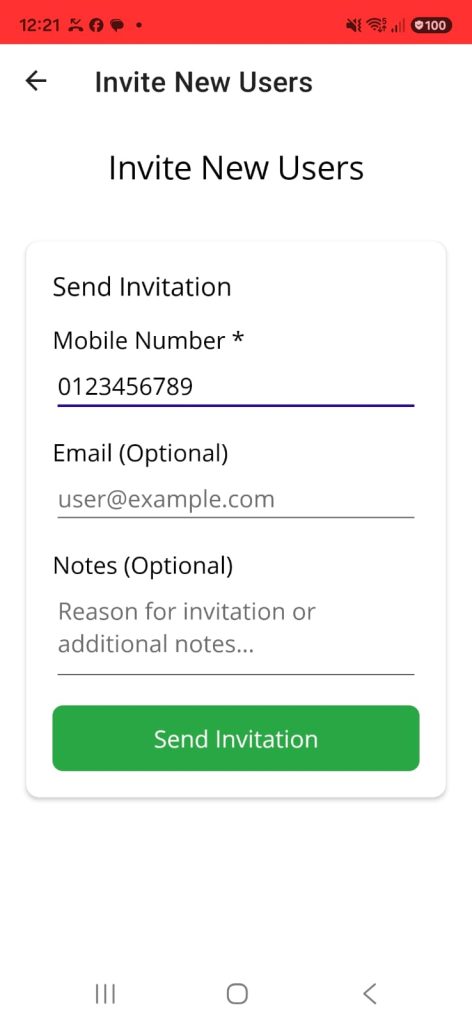
Step 2: App Installation
The user installs the Avondale South Community Watch mobile application.
We will update this section once the App is available in the App Stores
Step 3: Signup Request
The user enters their registered mobile number in the application and requests a one-time pin (OTP).
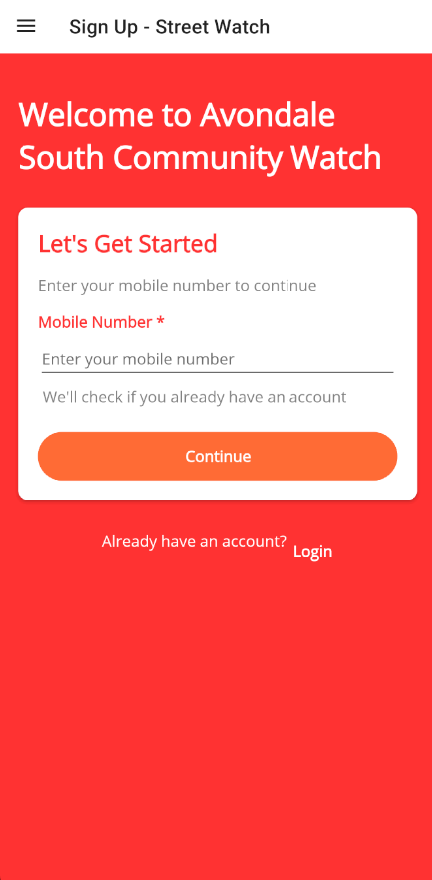
If the supplied mobile number is not registered you will get a warning
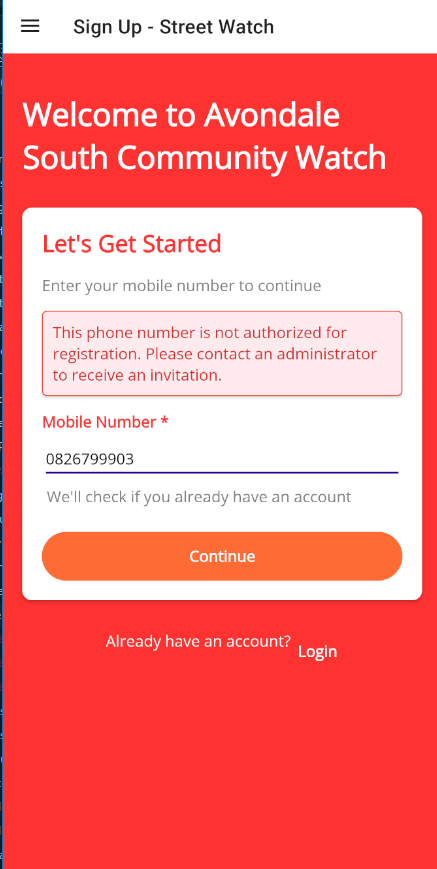
Once your mobile number has been verified, you will receive an SMS containing a One Time Pin (OTP)
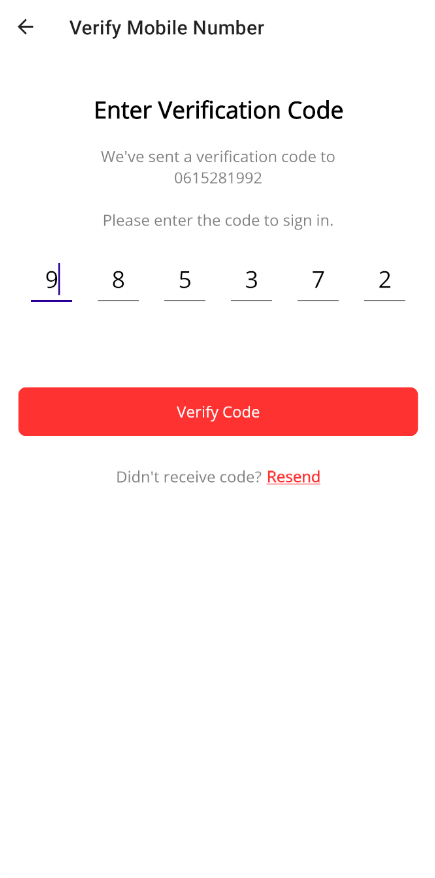
Step 4: OTP Verification
A one-time password is sent via SMS to the registered mobile number.
The user enters the OTP in the application to complete login.
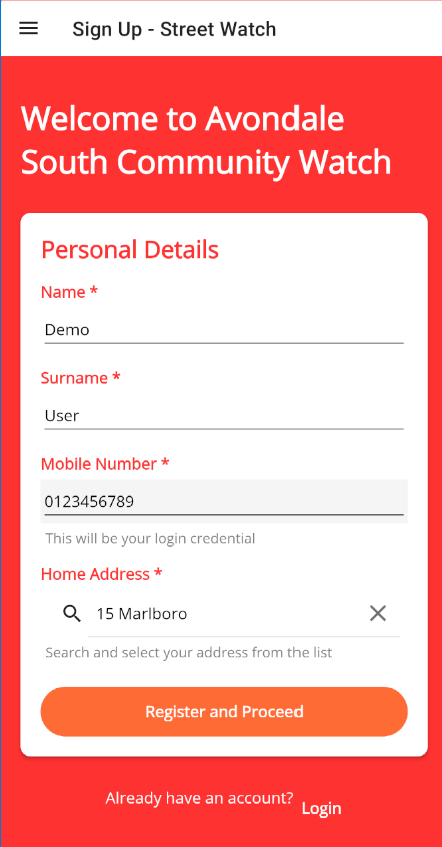
Next you will supply us with basic details to Identify yourself
Enter your name, surname and address. Your address must be a valid address in our area. You can search for the address. If you live in an apartment block, you just need to supply the unit number and the block name in the search eg. 15 Marlboro.
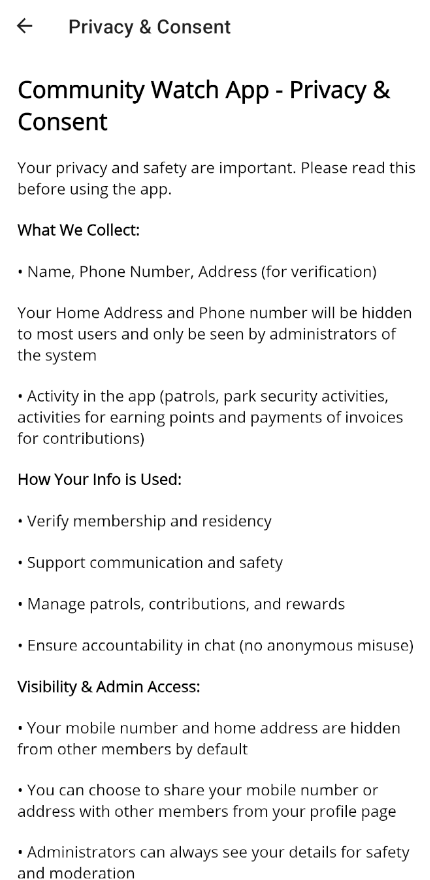
Step 5: Accept Privacy & Consent
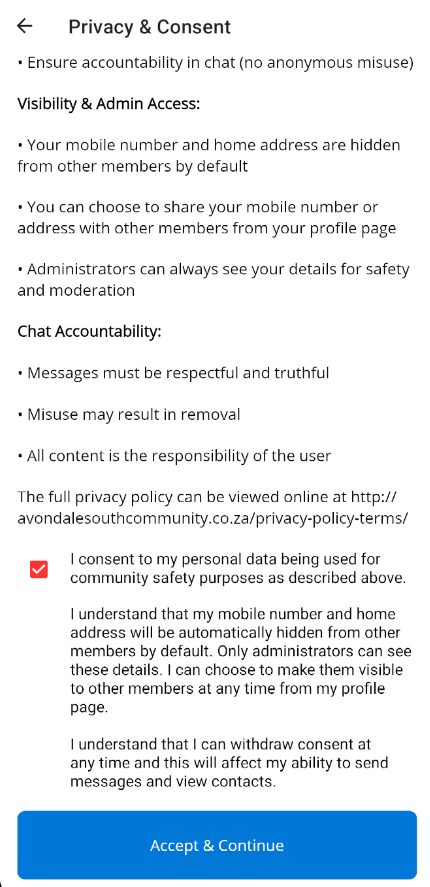
Read and accept the Privacy & Consent statement
and at the bottom you need to check the checkbox and click Accept and Continue
Step 6: Banking details
You will see our banking details. Make the payment using your Online Banking EFT. Please do not deposit cash directly.
Please note that for safety reasons, the banking details you see in this screenshot here are not real. Do not use them to make your payment. Use the bank account you see in the app. Use your address that you registered with as the payment reference.
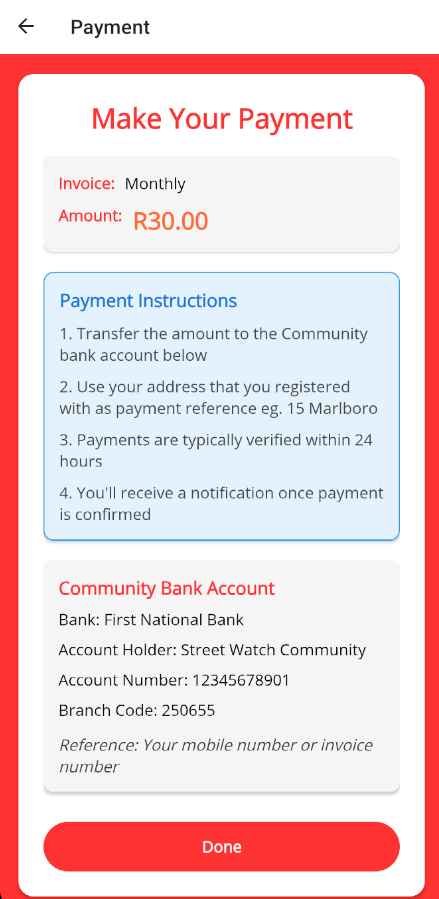
Once you have made the payment tap the Done button
Step 7: Access Granted
Once verified, the user gains access to the application features.